Dataset
Dataset is any collection of data. Here we listed all available operations below, each in a separate section.
Create dataset
To create an empty dataset, click new dataset button and specify dataset name.
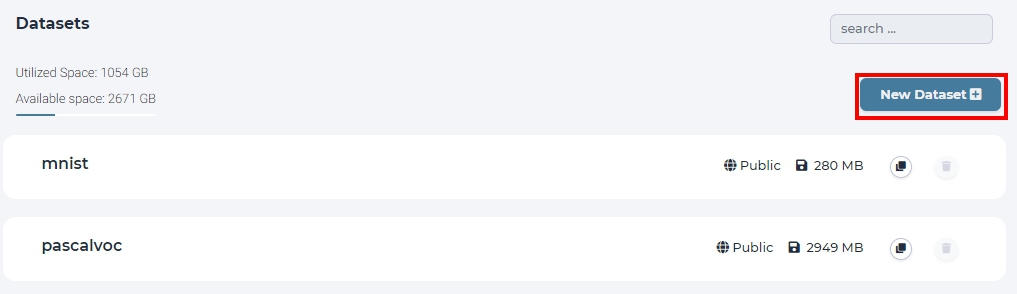
click new dataset button on the dataset page
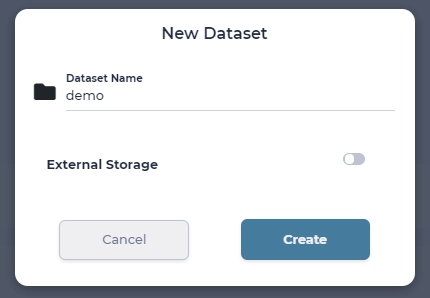
named ‘demo’ for this dataset
Tip
All created datasets are private and are within your account’s namespace.
Create dataset from NFS volume
You can create a dataset which mounts a remote NFS volume and manage the data in the system.
Simply click new dataset button, specify the dataset name and check External Storage toggle. From drop down menu select NFS. Input the NFS server ip and mount point path. Click Create.
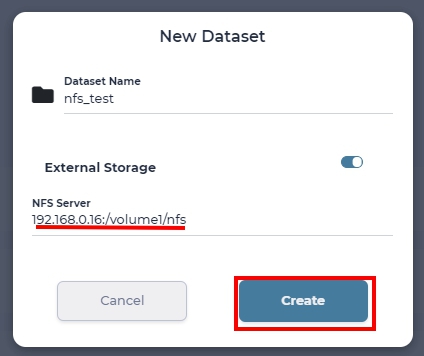
create a dataset which mounts remote NFS volume
Create dataset from Windows shared folder
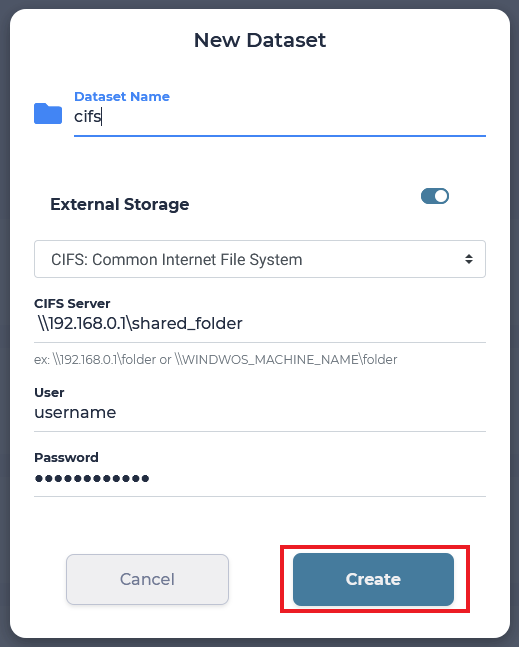
You can create dataset from remote Windows shared folder.
Click new dataset button, specify the dataset name and check External Storage toggle. From drop down menu select CIFS. Input the shared folder server ip, mount point path and remote machine credentials. Click Create.
Manipulate dataset
All available operations, that one can do in the dataset page, are shown below.
Browse dataset
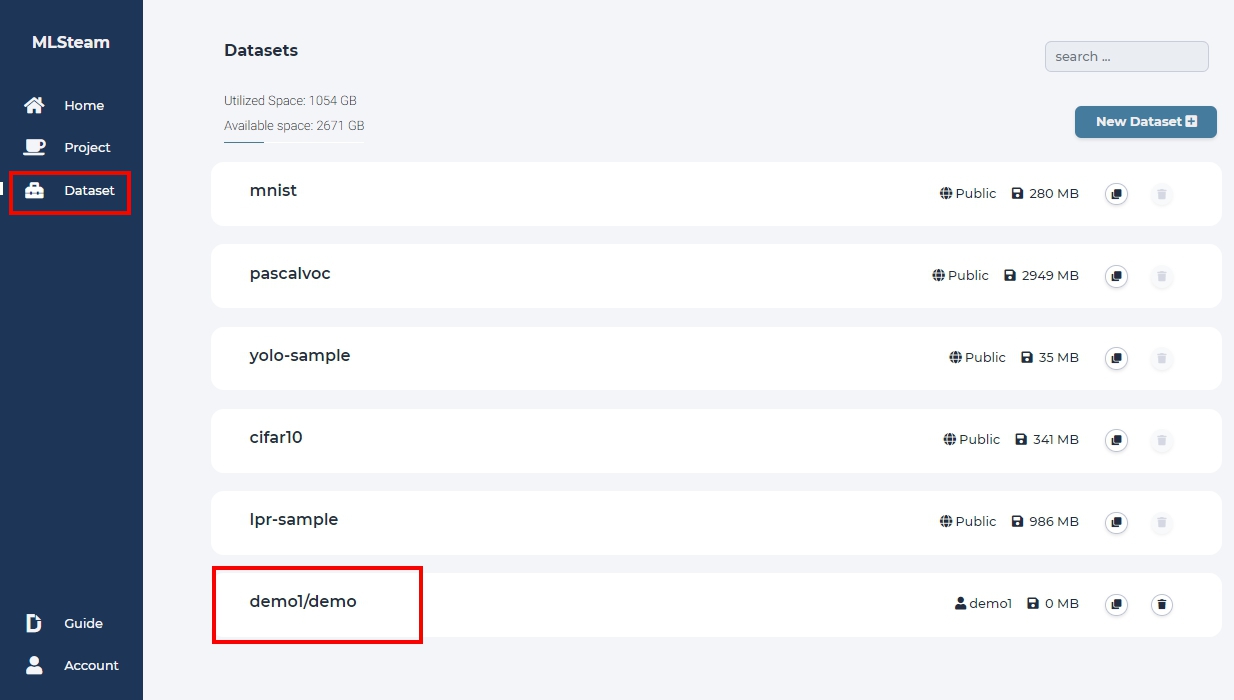
To browse the dataset, click on dataset name.
Clone dataset
To clone a dataset, click Clone button to create a copy of dataset.

Upload files to dataset
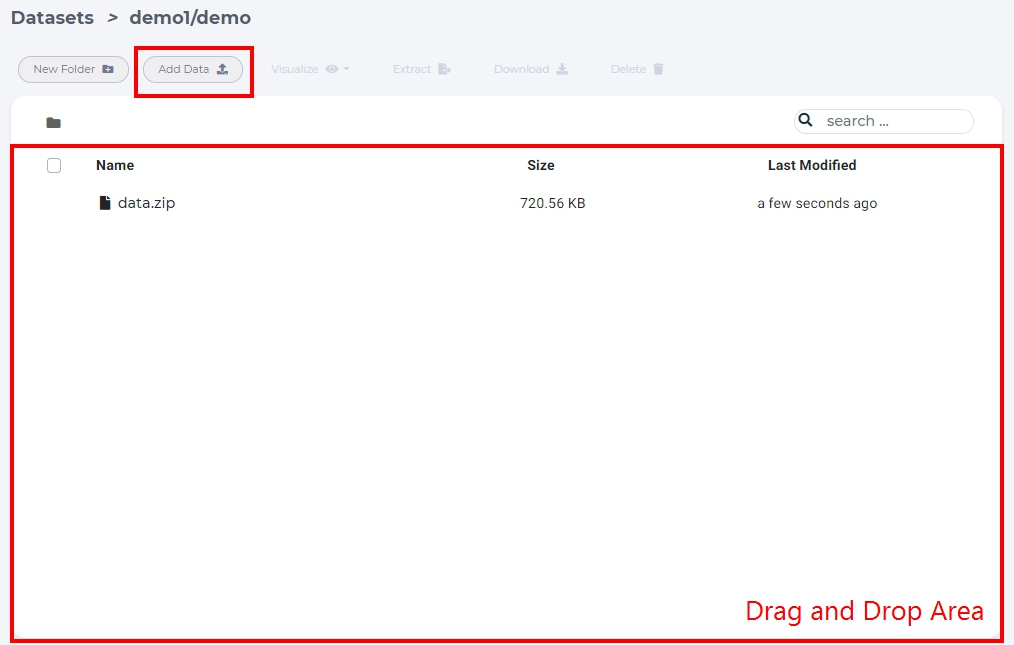
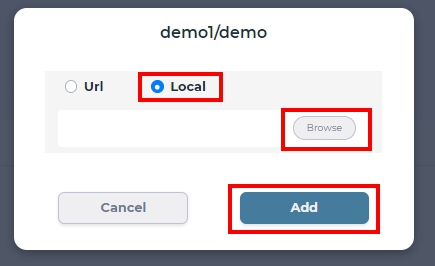
To upload files to a dataset, simply drag and drop files from local PC or click Add Data -> Local -> Browse to select local files.
Extract files from archive
Uploading too many files at the same time will cause your web browser to freeze. A better way to upload large collection of files is to compress them first into one archive file and uncompress the file on the dataset page.
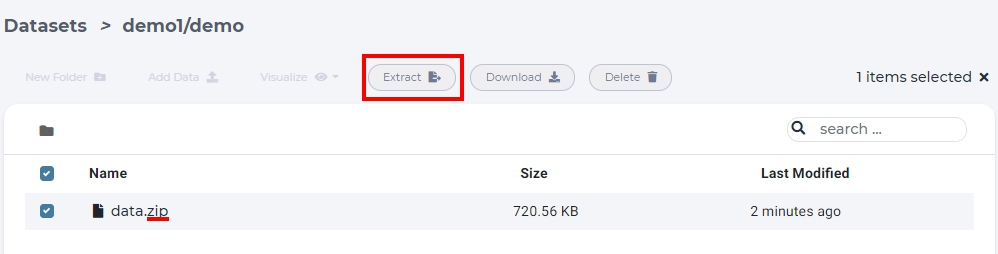
select archive file and click “Extract”.
Tip
Supported compress file format tar, tgz, tar.gz, zip.
New folder
To create folders in dataset, click new folder button within a dataset.
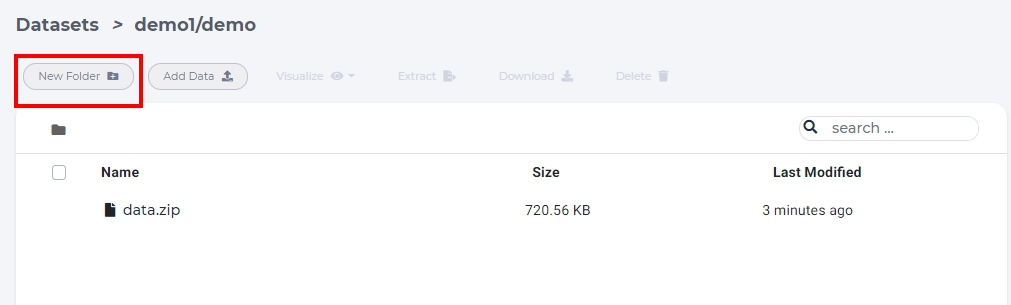
click new folder
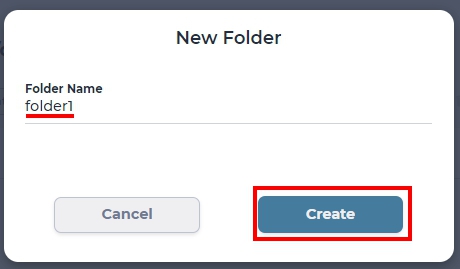
input folder name and click create.
Download files
To download files, select a file and click download button.
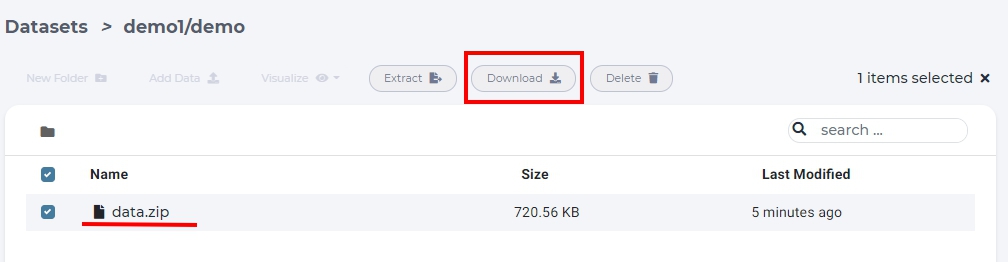
download a file
Delete folder/file
To delete files or folders, select a folder or a file and click delete.
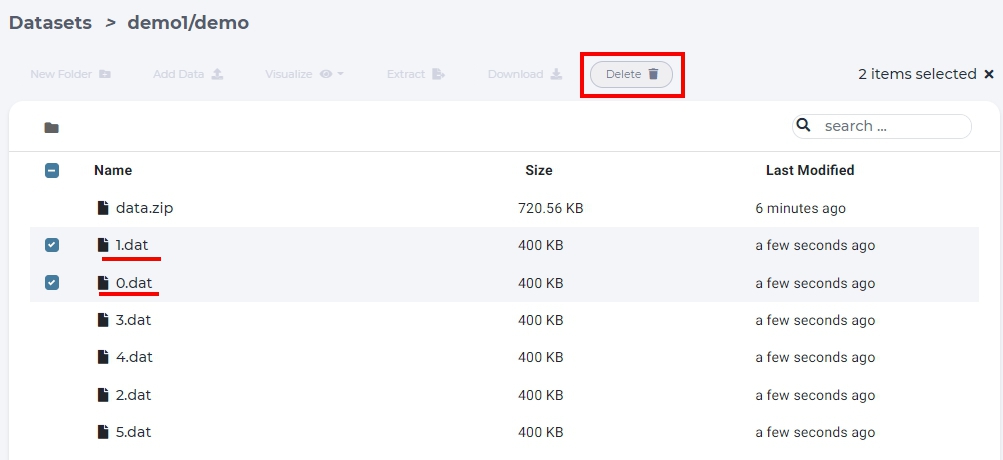
delete a file in dataset page
Visualize labeled dataset
For supervised learning, dataset has to be labeled with correct answers. For better visualization, system support following labeling format for visualization.
YOLO format
To visualize YOLO dataset, we have to select the folder which contains images and specify it’s yolo format in dataset page.
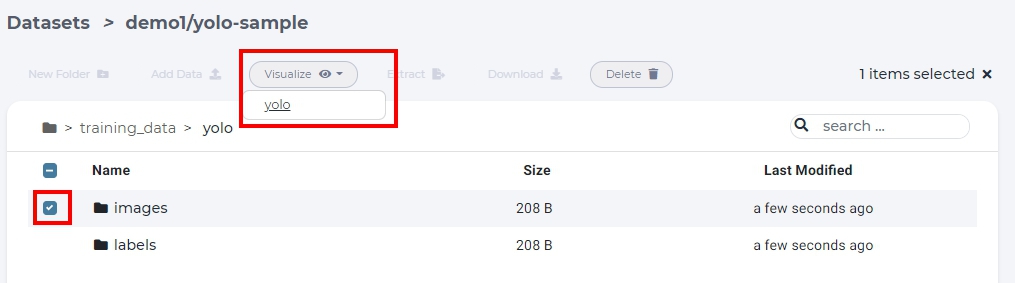
select images folder and selct yolo in Visualize dropdown list.
To visualize YOLO dataset, we need the following annotation files and inputs:
class_file: specify each index name of labels.
label_path: contains YOLO format label files.
predict_path: (optional) contains model prediction results in YOLO format.
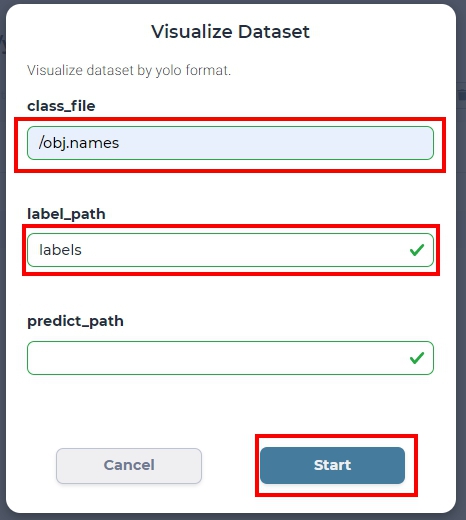
example of specifying a YOLO format image folder
If visualization is successfull, yolo tag will appear in related files and folder.
click images to visualize bounding box in each labeld image.
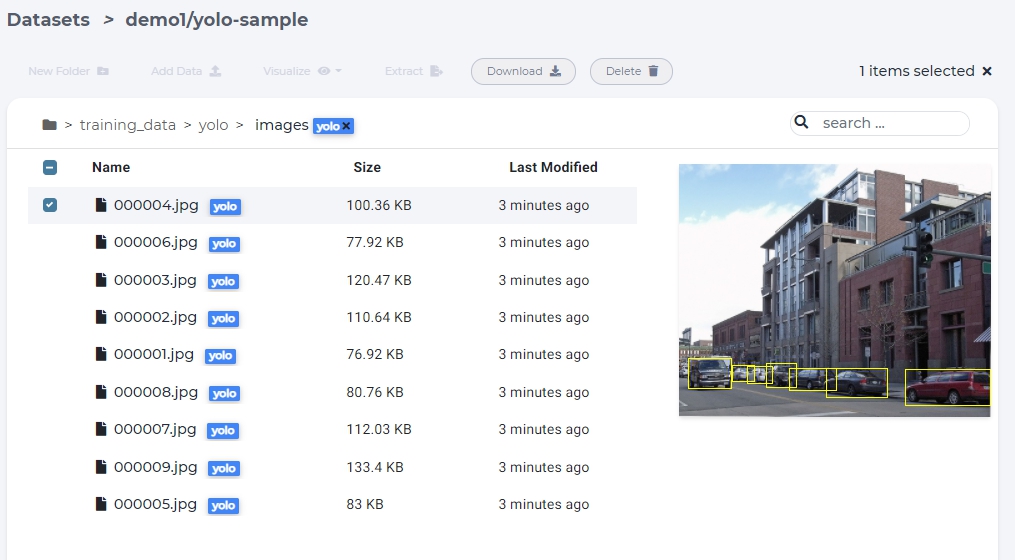
visualize bouding box in a yolo image
If you want remove the yolo tag, click ‘x’ on top of the dataset page.
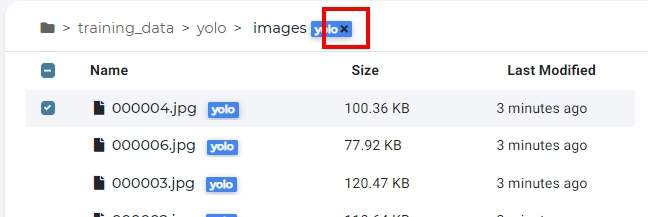
remove yolo tag images
Delete dataset
To delete a dataset, simply click trash icon in the dataset page.
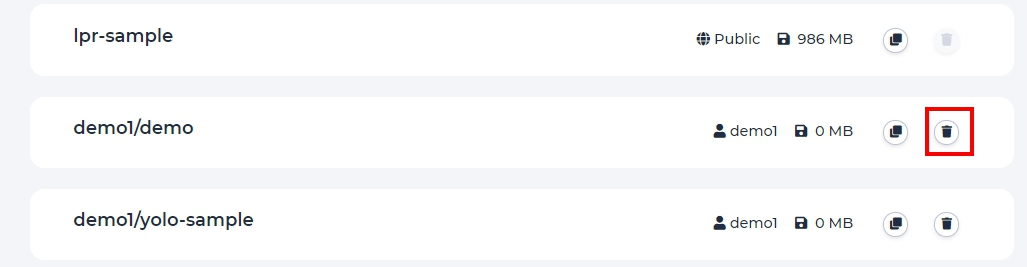
delete a dataset.