Account
User
Create and Manage a User
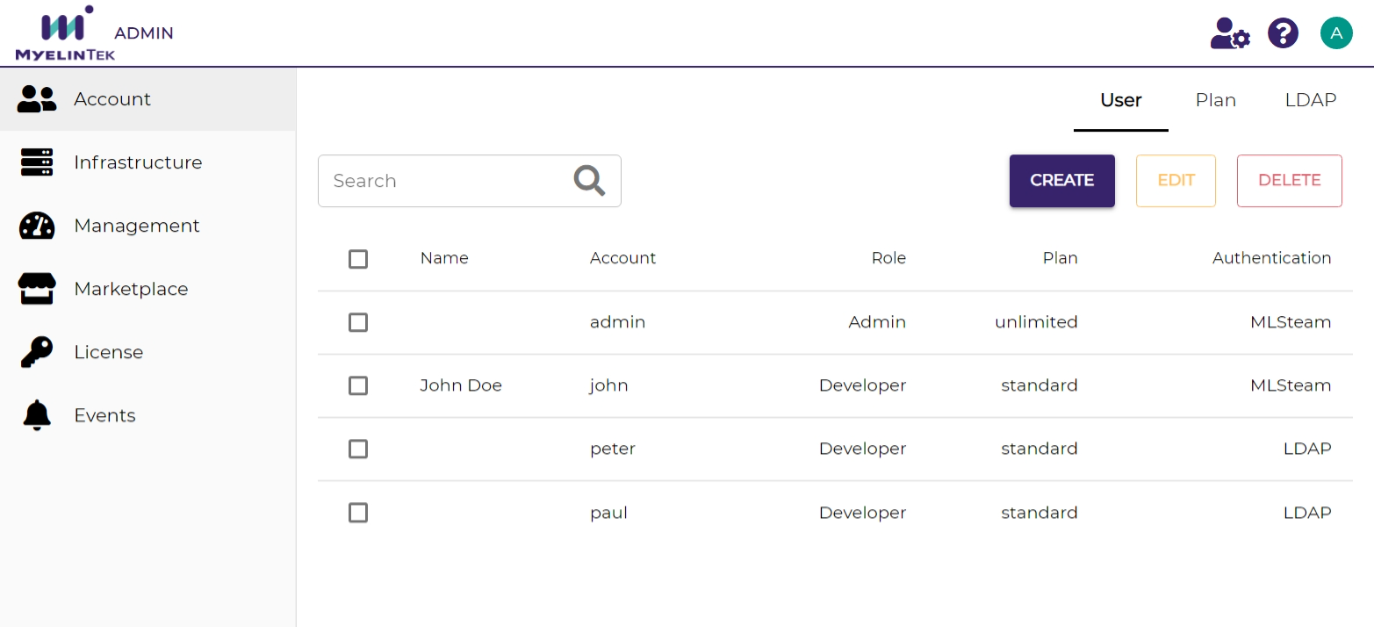
The User tab lists the registered MLSteam users.
Name: displayed name
Account: login account
Role: user role. Could be Admin (system maintainer) or Developer (ML developer)
Plan: resource limitation plan for running the user’s owning labs
Authentication: authentication type. Could be MLSteam (managed by MLSteam), LDAP (managed by LDAP), or AD (managed by AD)
To create a user:
Click on the CREATE button.
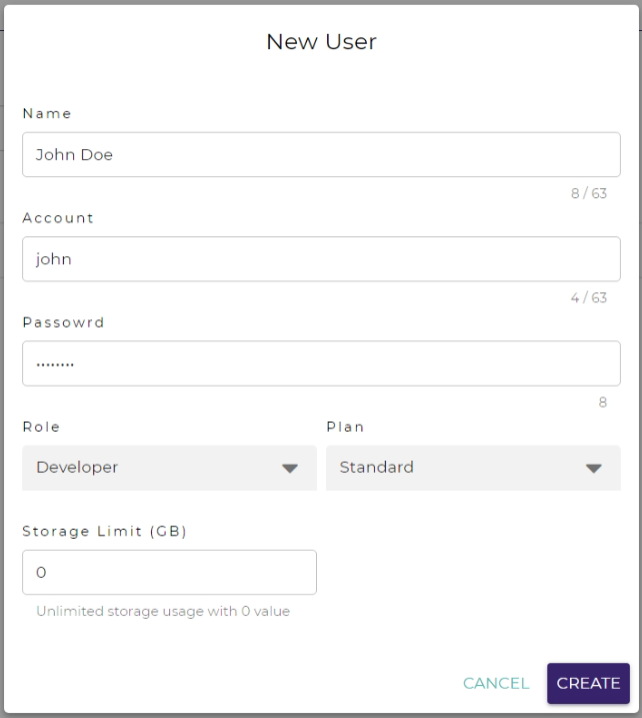
Fill in the user settings:
Name: displayed name
Account: login account
Password: login password
Role: could be Admin (system maintainer) or Developer (deep learning developer)
Plan: resource limitation plan for running the user’s owning labs
Note
Select the Unlimited plan to disable resource limitation.
Storage Limit: storage usage limitation for running the user’s owning labs in GB
Note
Set
0to disable storage usage limitation
Click on the CREATE button.
To edit a user:
Select the user to edit.
Click on the EDIT button.
Change the user settings.
Click on the SAVE button.
To delete a user:
Select the user to delete.
Click on the DELETE button.
Click on the OK button.
Warning
On deleting a user:
Its access to the MLSteam system and to the projects will be removed.
All artifacts (such as projects, labs, and pipelines) owned by that user will be deleted.
Plan
Set Plan for Resource Limitation
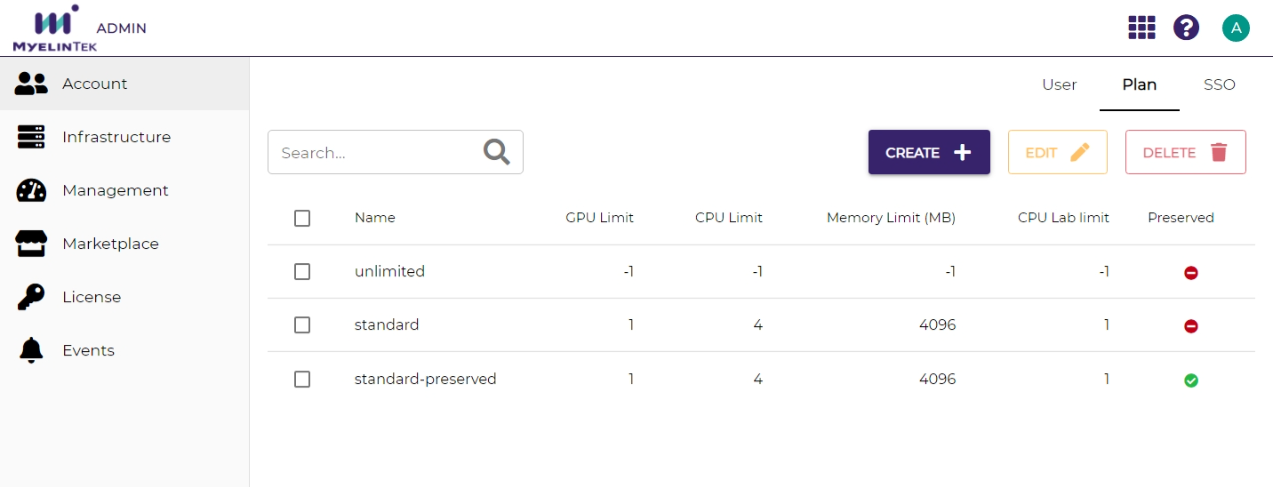
The Plan tab lists the resource limitation plans for users.
Name: plan name
GPU limit: GPU number limit
CPU limit: CPU core limit
Memory limit: memory limit in MB
CPU lab limit: CPU-only lab number limit
Preserved: whether the resources are allocated for the user in advance
Note
A CPU-only lab is a lab that runs without GPUs.
To create a resource limitation plan:
Click on the CREATE button.
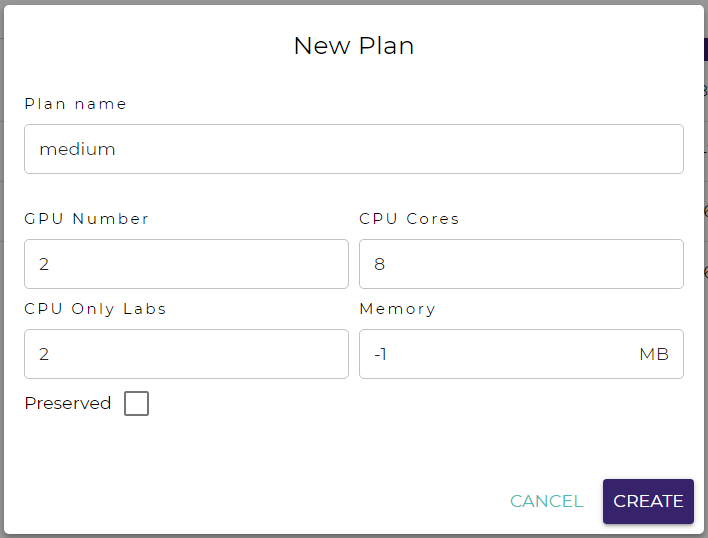
Fill in the plan settings:
Plan name: plan name
GPU number: GPU number limit
CPU cores: CPU core limit
CPU only labs: CPU-only lab number limit
Memory: memory limit in MB
Preserved: whether the resources are allocated for the user in advance
Note
Set
-1to disable a limitationClick on the CREATE button.
To edit a resource limitation plan:
Select the plan to edit.
Click on the EDIT button.
Change the plan settings.
Click on the UPDATE button.
Note
The updated resource limitation will take effect on creating new labs.
To delete a resource limitation plan:
Select the plan to delete.
Click on the DELETE button.
Click on the OK button.
Note
A resource limitation plan could be deleted only when no user uses that plan.
Authorization
Integrate LDAP/AD
The LDAP tab manages integration of remote authentication.
To enable remote user authentication, set up an LDAP or AD server here.
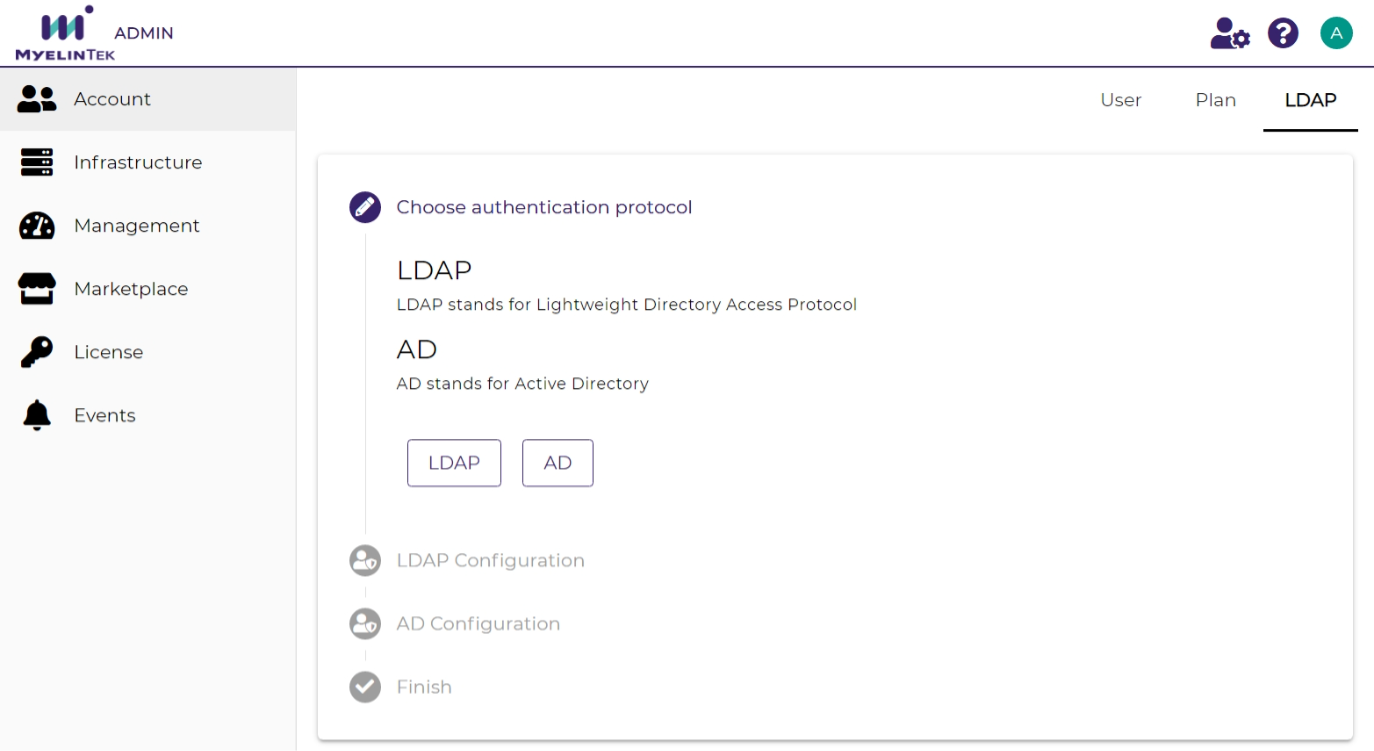
To set up LDAP authentication:
Click on the LDAP button.
Fill in the settings fields.
Click on the SUBMIT button.
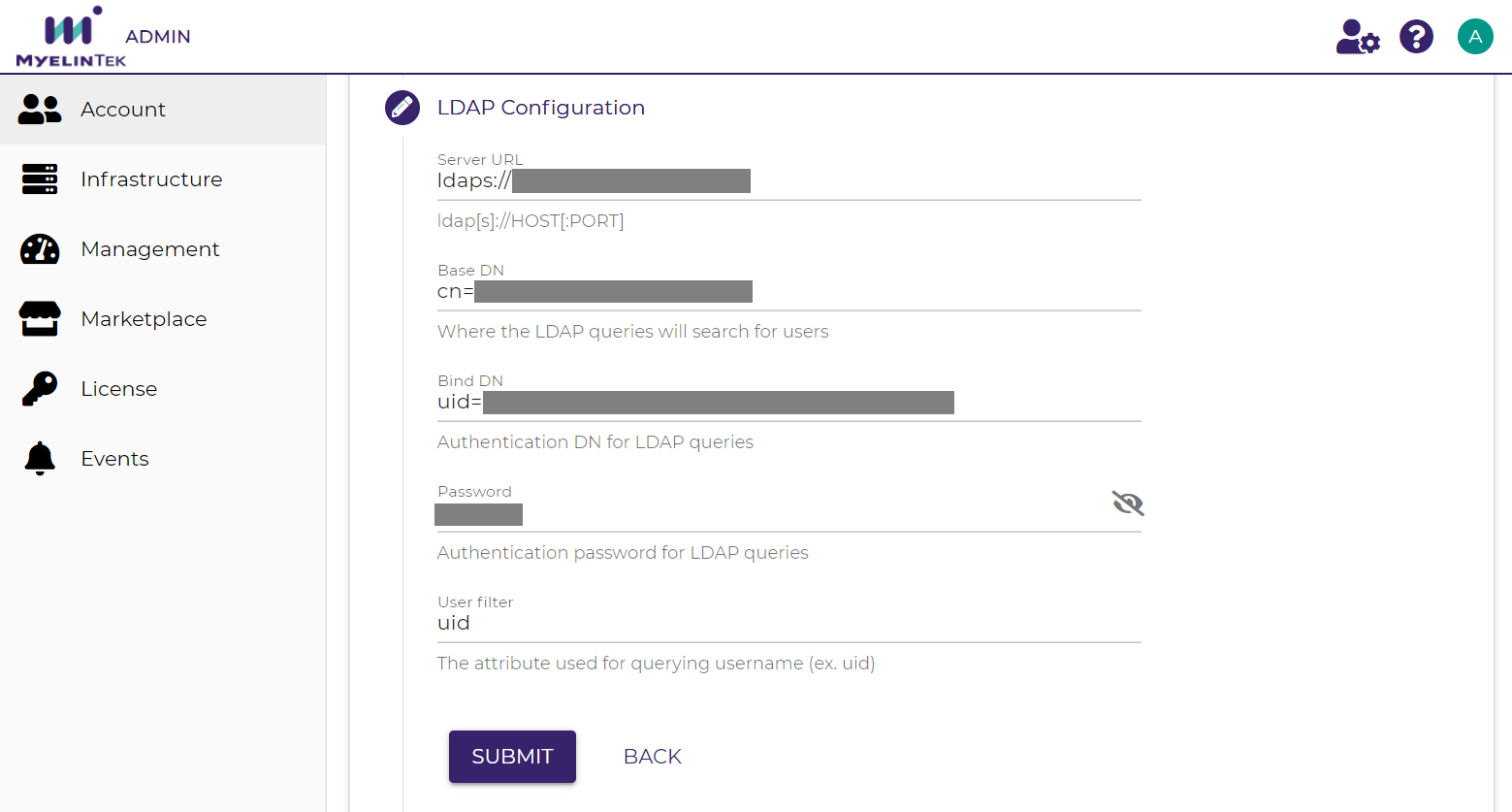
Note
You could set up either LDAP or AD (but not both) for remote authentication.
A remotely authenticated user is initially given the Developer role and the Standard resource plan.
A remotely authenticated user is listed in the User tab only after it had logged in MLSteam.
To delete remote authentication:
Click on the DELETE button.
Click on the OK button.
Warning
On deleting a remotely authenticated user:
Its access to the MLSteam system and to the projects will be removed.
All the artifacts (such as projects, labs, and pipelines) owned by that user will be deleted.