Template
A template is a creator of a lab, pipeline action, or WebApp with predefined programs, datasets, models, or other settings.
Built-in Templates
MLSteam has built-in templates for common ML tasks, such as:
Image classification
Object detection
Face mask detection
Speech recognition
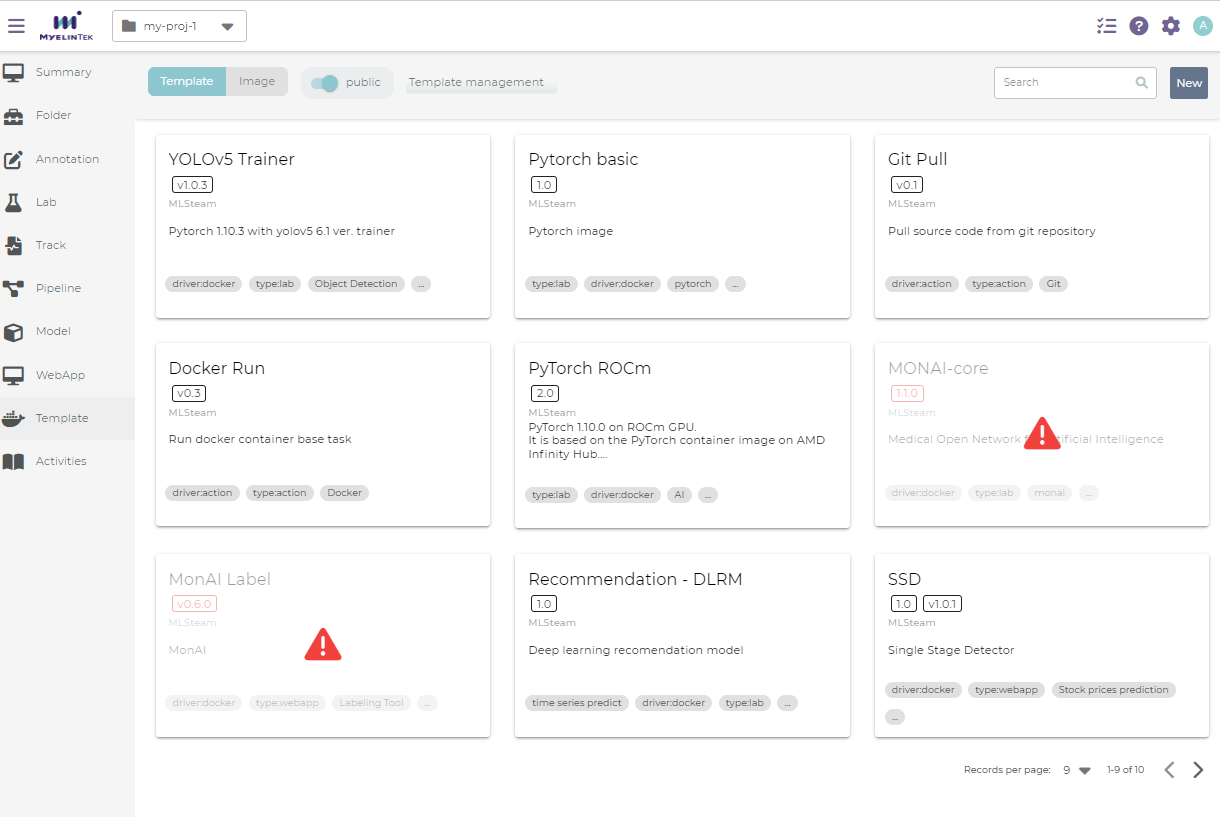
A template may have tags denoting its attributes.
type:lab: a lab templatetype:action: a pipeline action templatetype:webapp: a WebApp template
Create a Template
A template could be created from an exported template file or from a raw Docker image.
To create a template from a template file:
Save the source template file in a project-scoped folder.
In the template page, click on the NEW button.

Click on the From folder menu item.
In the template creation dialog, select the folder and the source template file.
Click on the IMPORT button.
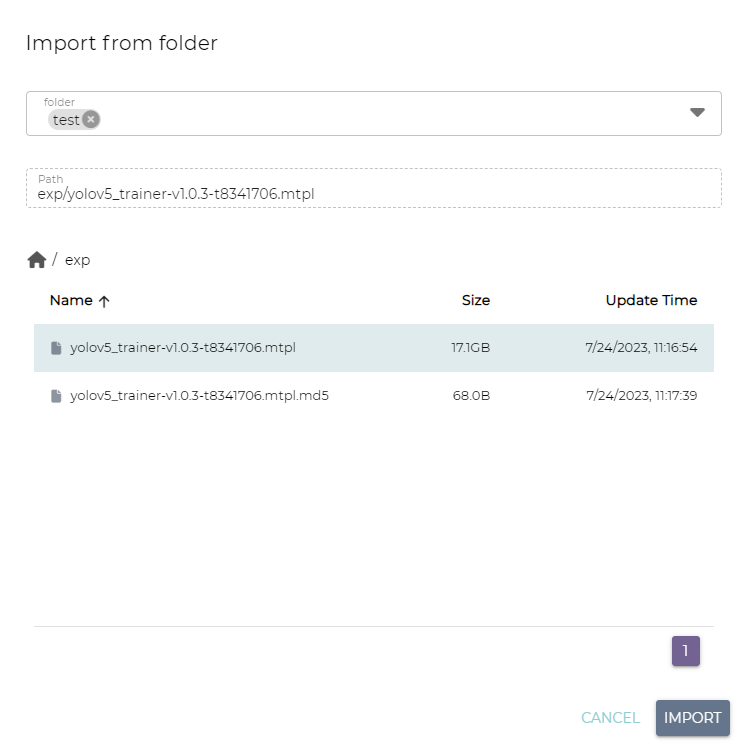
After the template creation finishes, reload the template page and the new template will be displayed.
Note
An MLSteam template file encapsulates a Docker image and the relevant template settings.
To create a template from a Docker image:
Upload the Docker image to MLSteam if it has not existed.
In the template page, click on the NEW button.
Click on the From image menu item.
Under the Template information section, select the image and fill in the following fields:
Template name
Template version
Template description
Template tags (separated by commas, semicolons, or pipes)
Under the Template type section, choose one of the template types and fill in the corresponding fields:
Lab
IDE Interface: could be
terminal,jupyter, or bothDataset mounts
Resource requirements: minimum resource requirements for CPU cores, memory size, and GPU cards
WebApp
Command to launch the app
Port map: app ports to export
URL: webapp access URL; the default setting is
http://${IP}:${PORT}. Set this field to customize the URL scheme or path, such ashttps://${IP}:${PORT}/path/to/homepage. Note that only the exact matches of${IP}and${PORT}will be replaced by the actual assigned values for the corresponding running Webapp.Mount filesystem: folder mounts
Parameters
Resource requirements: minimum resource requirements for CPU cores, memory size, and GPU cards
Pipeline action
Command to run the pipeline
Command visibility: whether the command is
readonly,editable, orhiddenin the pipeline action dialogMount filesystem
Parameters
Resource requirements: minimum resource requirements for CPU cores, memory size, and GPU cards
Note
Resource requirements are referential. They do not stop users from creating a lab with a flavor not satisfying the resource requirements; only a warning message is displayed.
Click on the CREATE button.
Delete a Template
To delete a template:
Go to template page and click on the delete button at the selected version.
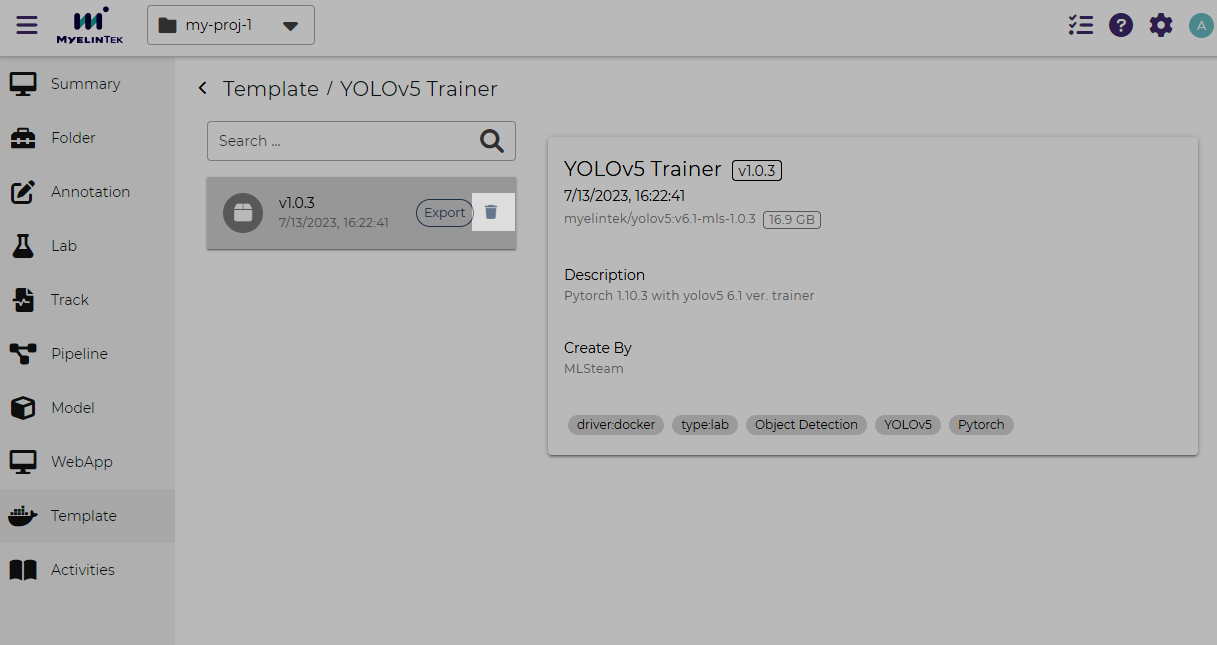
Click on the OK button.
Note
A built-in template could not be deleted in the template page.
Export a Template
A template could be exported and imported between MLSteam systems. To export a template:
Create a project-scoped folder which serves as the export destination if it has not existed.
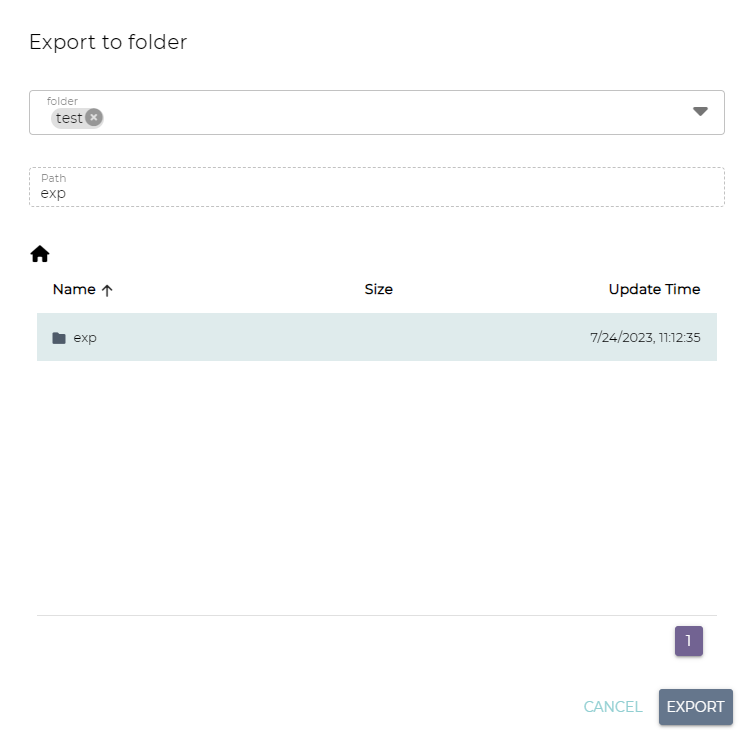
Go to template page and click on the EXPORT button at the selected version.
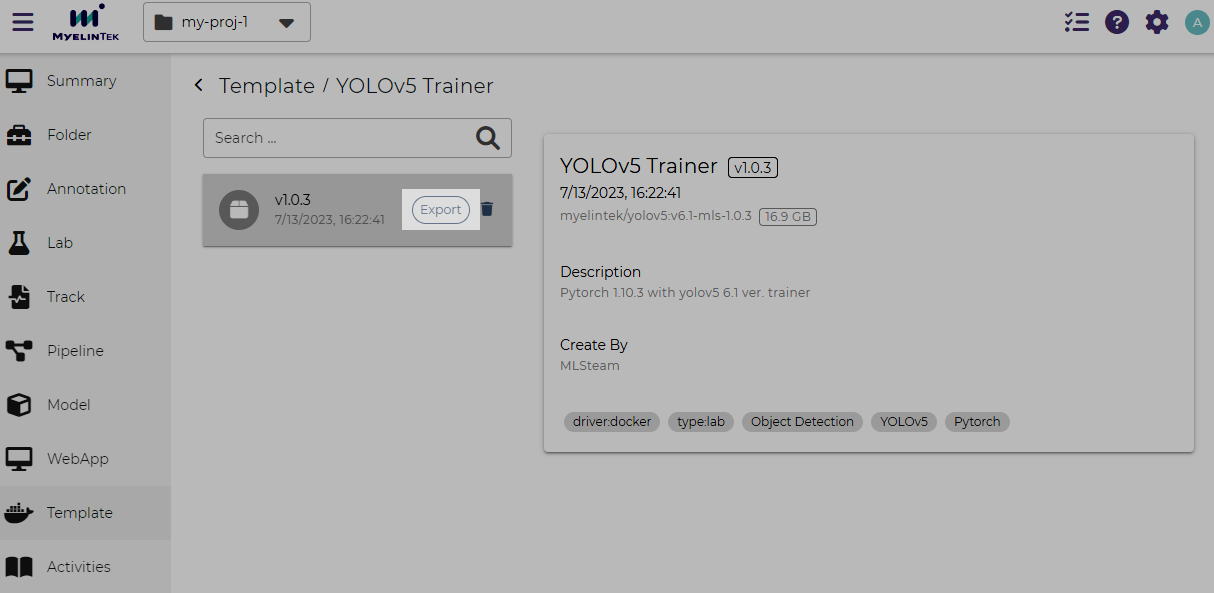
Select the destination folder and the path within the folder to save the exported template file.
Click on the EXPORT button.
Upload an Image
This section describes several ways to upload a Docker image for creating a template.
To upload an image from a Docker image:
In the Image tab, click on the NEW button.
Click on the Internet Pull menu item.
Fill in the image link and the image name in the dialog.
Click on the PULL button.
To upload a local Docker container or image through registry:
Export the local Docker container or image with the
docker exportordocker savecommands. The exported image file will be in the tar format.Push the exported image file to a Docker image registry accessible by MLSteam.
Note
If your MLSteam installation has a Docker image registry, you may push the exported image by running the commands provided by MLSteam. To get the commands, click on the NEW button and click on the Push menu item.
If this is the first time you push the Docker image, set up the Docker image registry before you run the push commands.
Follow the steps to upload an image from a Docker image registry.
To upload an image from a Docker image file:
Save the source Docker image file in a project-scoped dataset.
In the Image tab, click on the NEW button.
Click on the From File menu item.
Fill in the image name and select the source image file from the dataset.
Click on the IMPORT button.
To upload a local Docker container or image without registry:
Export the local Docker container or image with the
docker exportordocker savecommands. The exported image file will be in the tar format.Upload the exported image file to a project-scoped dataset.
Follow the steps to upload an image from dataset.
Setup a Docker Image Registry Running on Http
To enable access to a Docker image registry running on the http protocol, such as MLSteam’s built-in registry, you need to setup an insecure registry record for Docker.
Edit the Docker configuration file.
For Docker Desktop for Windows, click on the Docker icon, select Settings, and then select Docker Engine.
For Docker Desktop for Mac, click on the Docker icon, select Preferences, and then select Docker Engine.
For Windows Server, the default location is
C:\ProgramData\docker\config\daemon.json.For Linux, the default location is
/etc/docker/daemon.json. The actual location may vary in different Linux distributions.
Add the following settings into the file:
{
    "insecure-registries": ["<domain.sample.com>:<port>"]
    ,"runtimes": {
        "nvidia": {
            "path": "nvidia-container-runtime",
            "runtimeArgs": []
        }
    }
}
Replace
<domain.sample.com>and<port>by the actual registry address.Note
For the MLSteam built-in registry, its address is available at the Image tab: click on the NEW button and click on the Push menu item.
Restart the Docker to put the changes into effect.
For Linux with systemd, run the command:
sudo systemctl restart docker