PyCharm
The following tutorial is based on Windows 10, 2019.3.3 (Professional Edition)
Caution
Please note that remote connection feature only supported at PyCharm Professional!
Install PyCharm
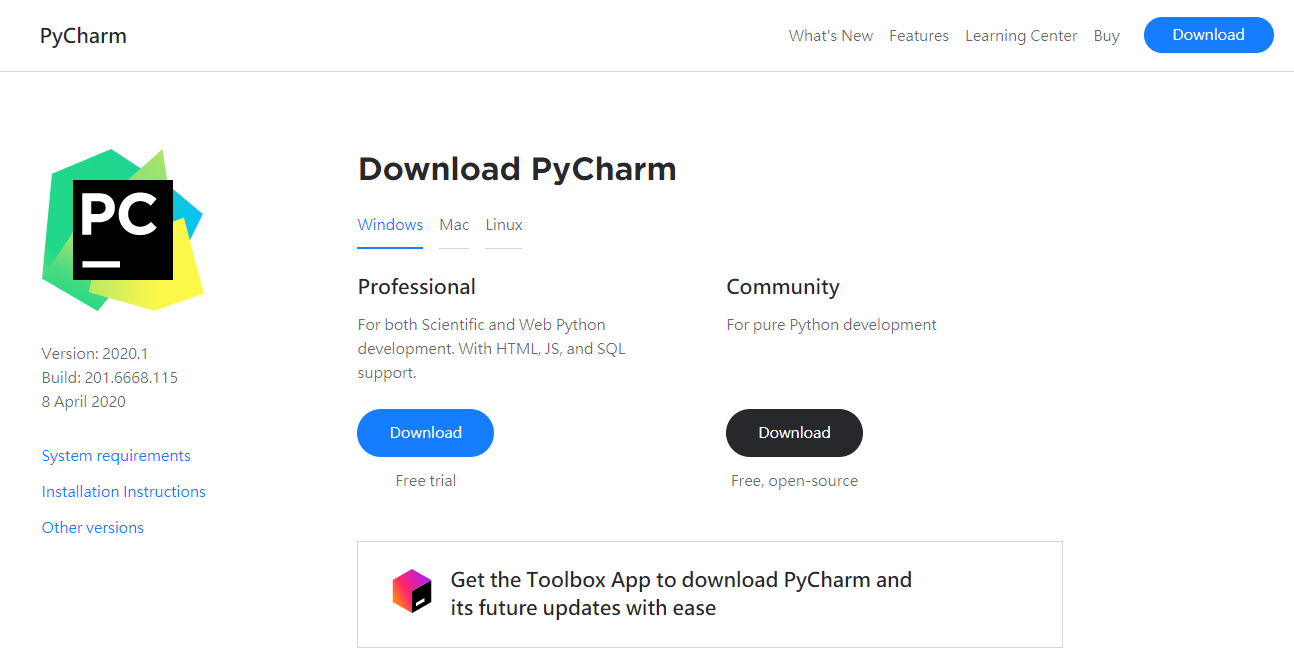
Download PyCharm according to your operating system from jetbrains.com/pycharm
SSH key
Open your lab and make sure the ssh key is generated. Click the ssh key to download to your PC.
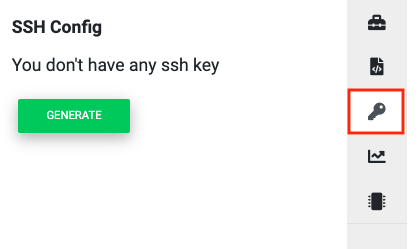
SSH Config, download SSH key by clicking the ssh key link
Tip
downloading will start automatically, if it does not press the ssh key link.
Note
In Linux, you need to change the sshkey file to 600 mode.
PyCharm Project
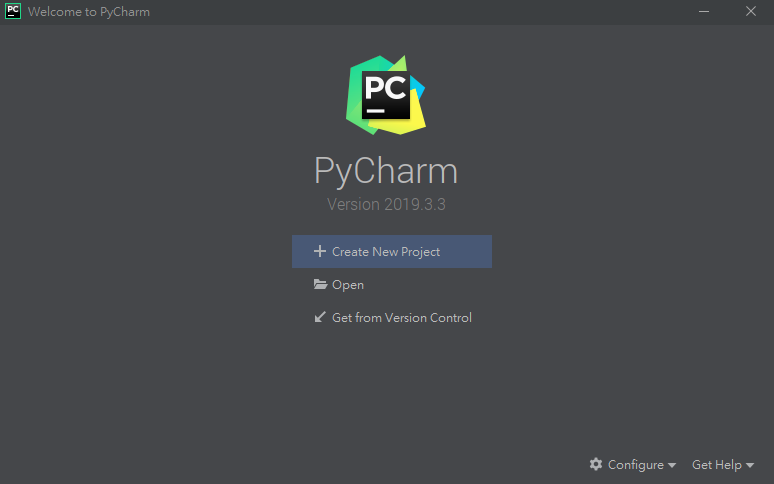
Open the PyCharm and create a new project.
Create a new SSH Interpreter from Pure Python -> Existing interpreter -> …
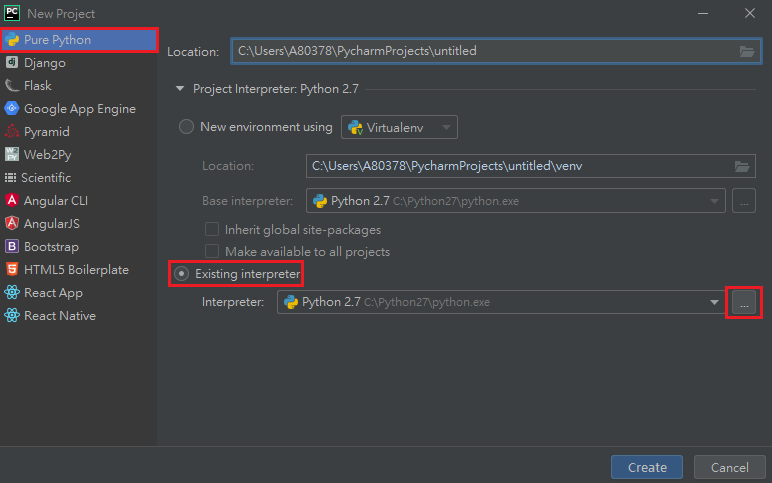
Setup Remote Interpreter
Type in the SSH host IP, port and user information in SSH Interpreter section. (Fill in the information based on SSH Config above)
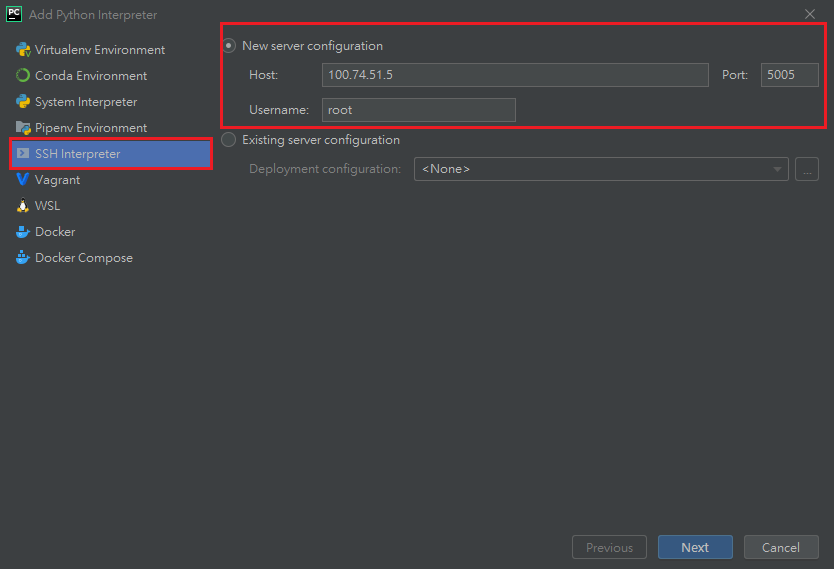
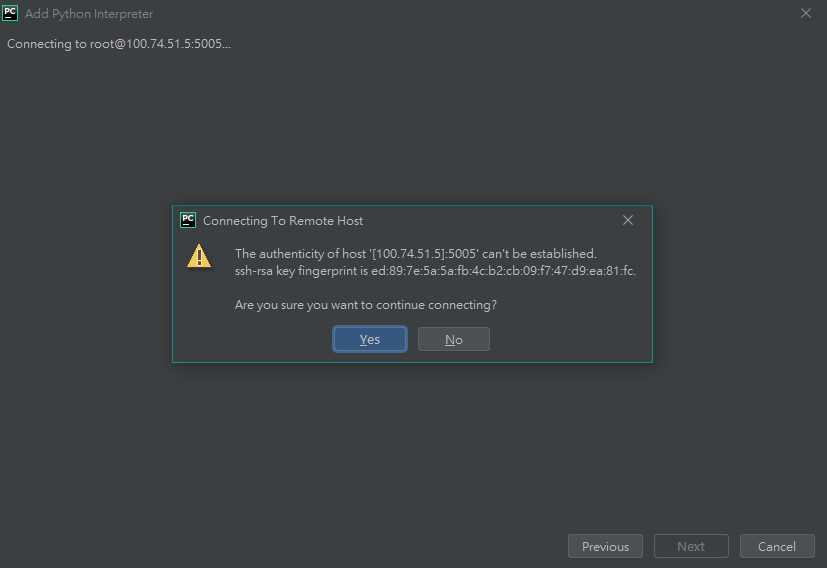
Click Next and PyCharm will try to connect to the Lab, click Yes to continue.
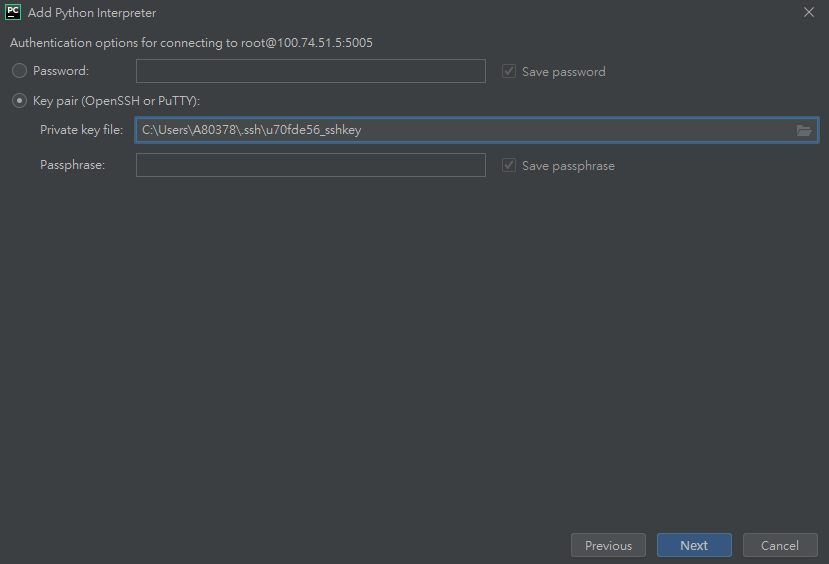
PyCharm will ask you for authentication, select the downloaded SSH Key at Key pair -> Private key file.
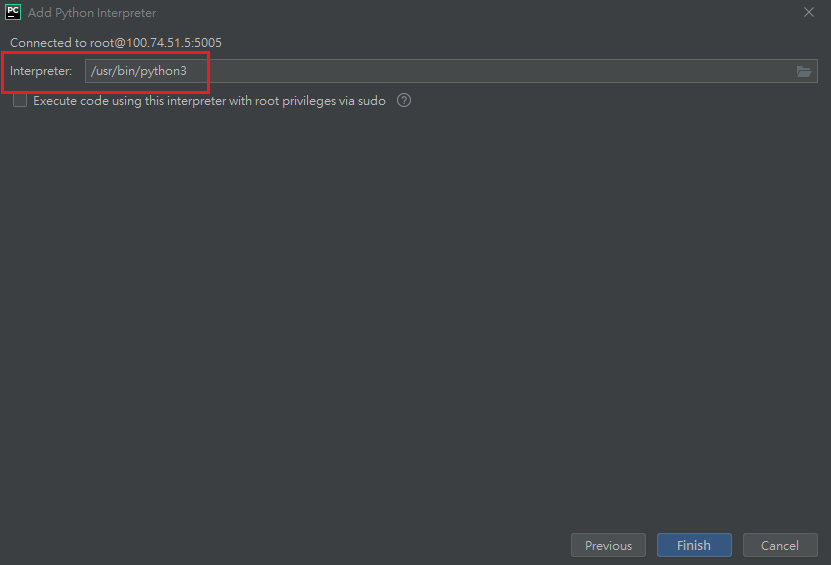
Once PyCharm successfully connect to the lab, you can set the interpreter path /usr/bin/python3. Then, click Finish to complete the interpreter setup.
Now the remote interpreter is added, click the Create button to open the project page.
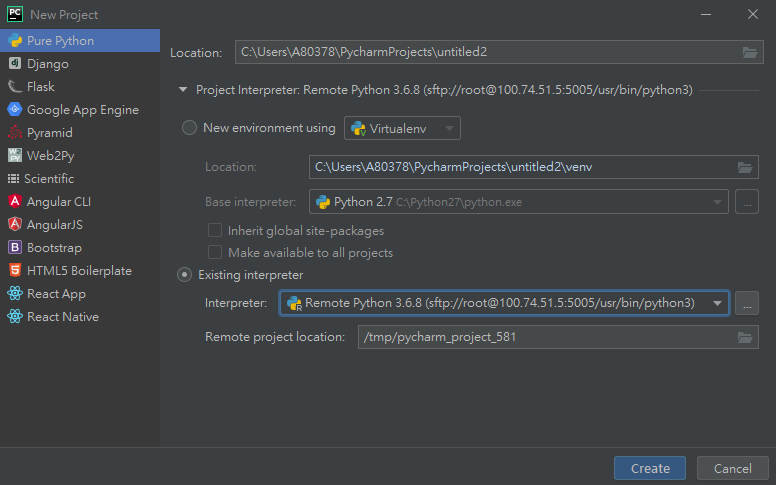
Tip
You can select the remote project location at this page or later.
Project Files Synchronize
In PyCharm, all the file editions happen in you PC. We have to download lab files to your PC first. Click Tools -> Deployment -> Configuration to select remote folder.
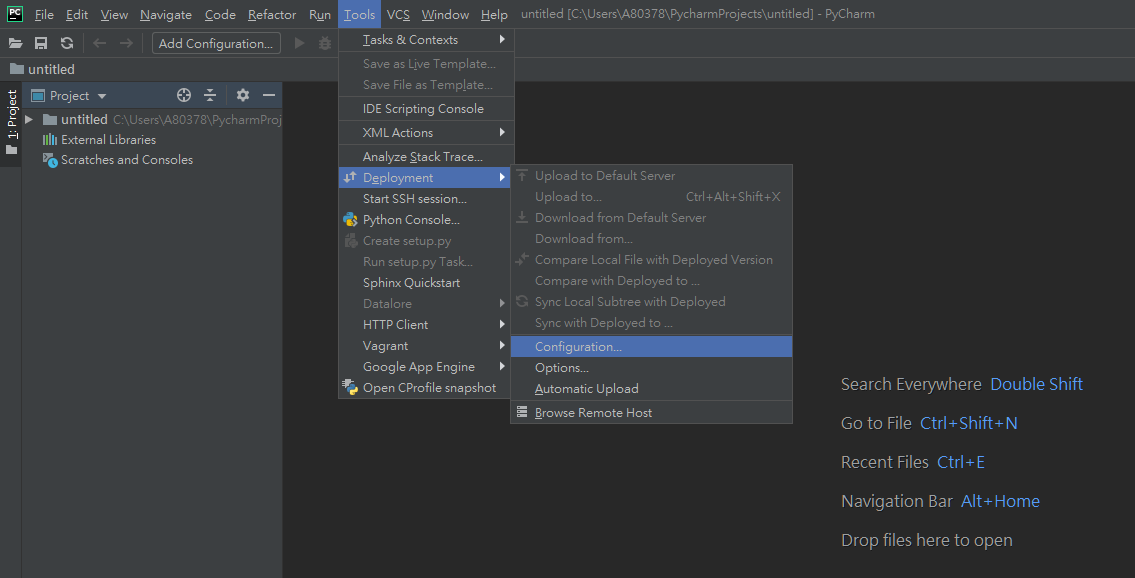
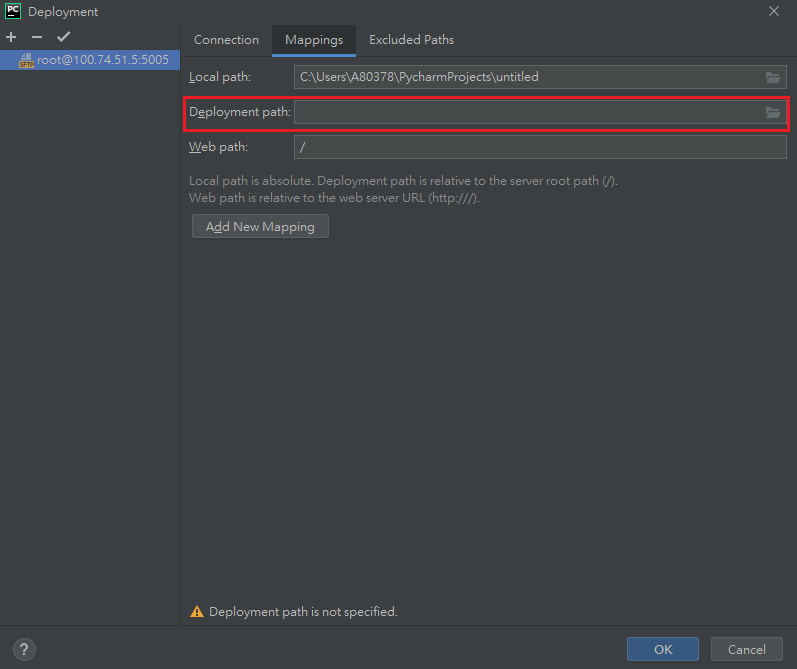
Select remote folder by clicking remote host -> Mappings -> Deployment path.
Choose the remote path /mlsteam/lab and click OK.
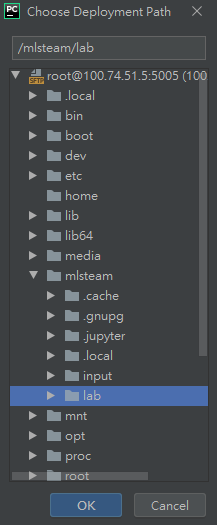
Now we can download the remote /mlsteam/lab folder to your PC.
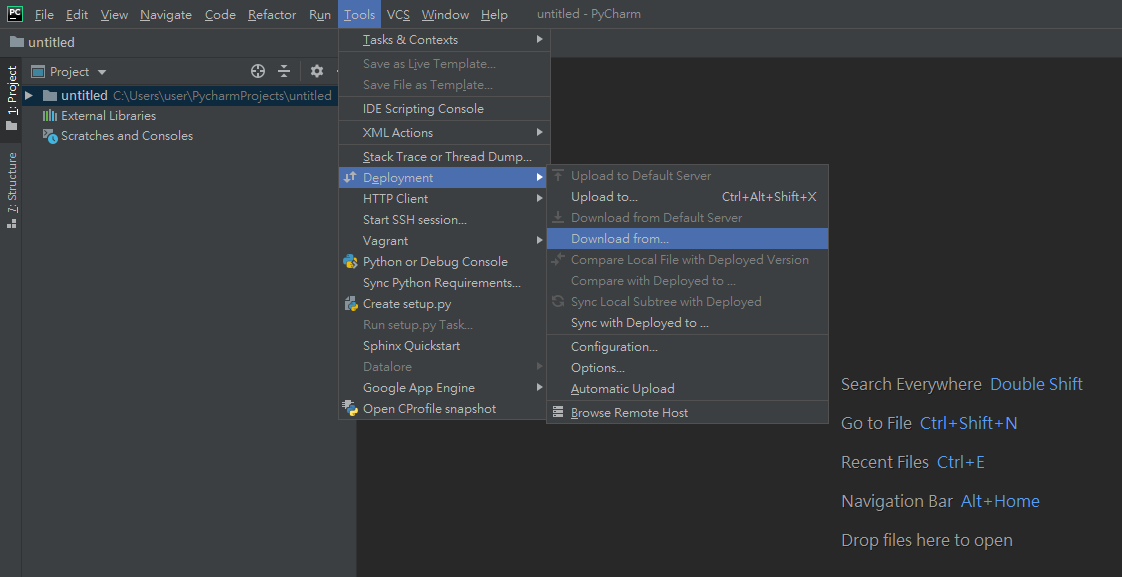
First, select your project folder, in this case is untitled at left column of PyCharm. Then, click Tools -> Deployment -> Download from -> remote host.
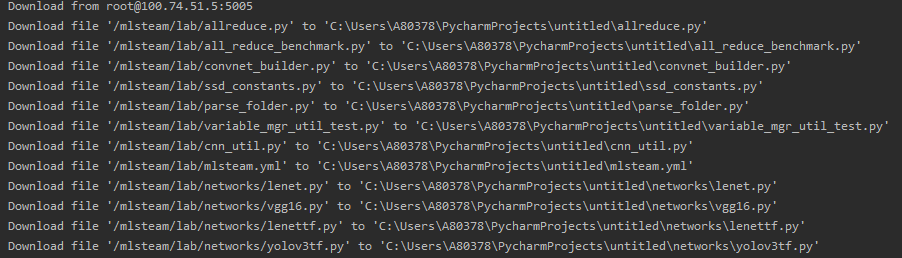
The download should proceed and you will see the following messages if the lab has many files.
You can browse and edit the loaded files in left column of PyCharm. Any modification in the files will be synchronized to remote folder automatically.
Note
If you want to synchronize(upload) local PC files to remote manually by clicking Tools -> Deployment -> Sync with Deployed to …